Updating a digital product sounds simple.
Replace the file.
Change the price.
Update the checkout.
Modify customer access.
Then discover:
Something stopped working.
Perhaps:
- Customers receive the wrong file.
- The download link fails.
- Existing buyers lose access.
- The checkout shows the wrong price.
- An email automation stops.
- The new version contains an error.
The safest time to decide how you would undo an update is before you make it.
That is the purpose of a digital product rollback plan.
The process is:
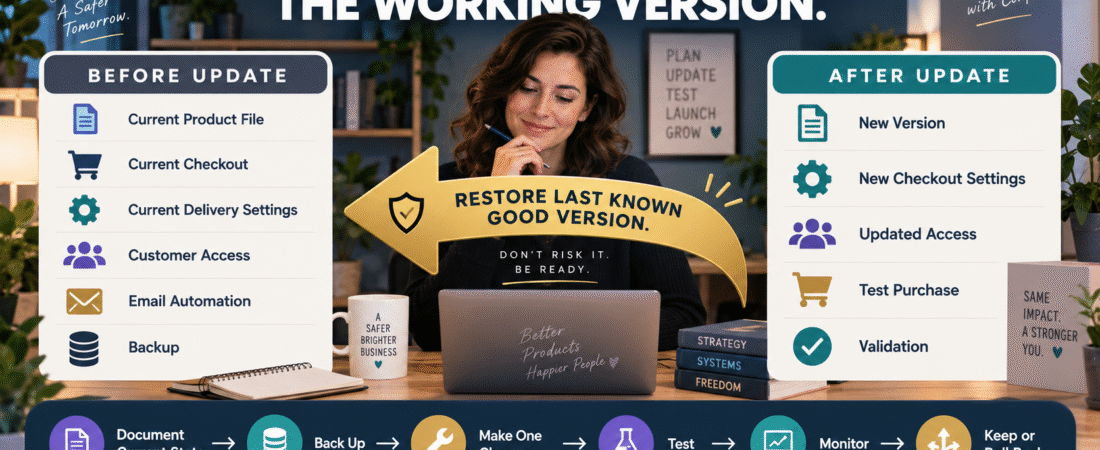
Document Current State → Back Up → Make Change → Test → Monitor → Keep or Roll Back
What Is a Rollback?
A rollback means returning a system to the last known working state after a new change creates a problem.
It does not always mean restoring an entire website backup.
A rollback could be as simple as:
- Re-uploading the previous PDF.
- Restoring the previous checkout price.
- Re-enabling an old automation.
- Reconnecting the previous delivery link.
The key is knowing exactly what “working state” you are trying to restore.
Step 1: Define the Current Working Version
Before updating anything, record:
Product Name:
Version:
File Name:
Current Price:
Checkout:
Delivery Location:
Customer Access:
Email Automation:
Date Verified:
This becomes your baseline.
Without a baseline, “restore the old version” may not mean anything precise.
Use Clear Product Versions
Do not name every file:
final.pdf
Then:
final-new.pdf
Then:
final-really-final.pdf
Use a version system such as:
ProductName-v1.0.pdf
ProductName-v1.1.pdf
ProductName-v2.0.pdf
Your guide to organizing digital product files so you always know which version is final can support this process.
Step 2: Preserve the Last Known Good Version
Never overwrite your only working master.
Before replacing a file:
- Copy the current file.
- Label it clearly.
- Store it in the approved backup location.
- Confirm that the backup opens.
The backup is not useful if it is corrupted or impossible to find.
Step 3: Record the Change
Use your business change log.
Example:
Date: September 11, 2026
Product: Beginner AI Guide
Change: Replaced Version 1.3 with Version 1.4
Reason: Updated workflow screenshots.
Previous File: Beginner-AI-Guide-v1.3.pdf
New File: Beginner-AI-Guide-v1.4.pdf
Rollback: Restore v1.3.
Now the change has history.
Step 4: Change One Layer at a Time When Possible
Suppose you simultaneously:
- Replace product file.
- Change price.
- Replace checkout.
- Edit delivery email.
- Change membership permissions.
Then a customer reports failure.
Which change caused it?
You created five possible causes.
When practical, separate major changes.
For example:
Change 1
Upload new file.
Test.
Change 2
Update delivery link.
Test.
Change 3
Change checkout.
Test.
This makes troubleshooting much easier.
Step 5: Back Up More Than the File
A digital product is often a system.
The product may depend on:
- File.
- Checkout.
- Payment processor.
- Product-delivery platform.
- Member access.
- Email.
- Automation.
If you update an important part, document the previous configuration.
Do not include passwords.
Record operational settings.
Step 6: Define Your Rollback Trigger
Before updating, decide what would cause you to reverse the change.
Examples:
ROLL BACK IF:
- Test purchase fails.
- Customer receives wrong product.
- Existing customer access disappears.
- Delivery email fails.
- Checkout shows wrong price.
- File is corrupted.
- Major factual error discovered.
This prevents you from improvising while under pressure.
Step 7: Create a Product Update Backup Folder
Example:
Products → Product Name → Version Archive
Inside:
v1.2
v1.3
v1.4-current
Each version can include:
- Final product.
- Editable source.
- Relevant images.
- Update notes.
You do not need to keep every temporary draft forever.
Preserve the versions necessary to restore or understand the product.
Step 8: Test Before Public Release
If possible, test the updated product before sending traffic.
The digital-product purchase and delivery test provides a useful end-to-end process.
Test:
Sales Page → Checkout → Payment → Delivery Email → Product Access → File
Do not test only the new PDF.
Test the customer journey.
Step 9: Protect Existing Customers
A product update may affect:
- New buyers.
- Existing buyers.
- Members.
- Subscription customers.
Ask:
Should existing customers receive the update?
Will the old access URL continue working?
Does replacing the file automatically affect everyone?
Your digital product update policy can help establish those expectations.
Step 10: Verify the Checkout Separately
If changing price or checkout configuration:
Test:
- Product name.
- Price.
- Currency.
- Payment option.
- Order bump.
- Thank-you destination.
- Customer-access trigger.
A beautiful product file does not matter if checkout sells the wrong offer.
Step 11: Verify Delivery
Confirm:
- Correct file.
- Correct version.
- Correct access page.
- Correct email.
- Correct customer permission.
If the platform displays multiple versions, make sure only the intended current version is presented to buyers.
Step 12: Monitor After the Update
Not every problem appears in your own test.
For the first few real transactions after an important update, watch for:
- Customer questions.
- Access problems.
- Failed payments.
- Delivery issues.
You do not need to stare at the system continuously.
Just give a meaningful update a short observation period.
Step 13: Roll Back Cleanly
If a serious problem appears:
- Stop making additional unrelated changes.
- Record the problem.
- Restore the last known good version.
- Test the restored state.
- Confirm customer access.
- Investigate the failed change separately.
Do not continue stacking new fixes onto an unstable system.
A Rollback Is Not Failure
Rolling back does not mean the update was a mistake.
It means your recovery process worked.
Software companies roll back releases.
Websites restore backups.
Digital-product businesses can use the same principle at a simpler scale.
The goal is controlled change.
Use Backups as Part of Business Continuity
A rollback process depends on having something reliable to restore.
My guide to backing up your online business without making the system complicated provides a broader continuity framework.
A Simple Rollback Checklist
BEFORE CHANGE
- Record current version.
- Back up current file.
- Record checkout settings.
- Record customer-access configuration.
- Confirm delivery email.
- Define rollback trigger.
DURING CHANGE
- Change one major element when practical.
- Record the change.
- Preserve previous configuration.
AFTER CHANGE
- Test purchase.
- Test delivery.
- Test file.
- Test customer access.
- Monitor first transactions.
IF PROBLEM OCCURS
- Stop additional changes.
- Restore previous state.
- Test restoration.
- Record incident.
- Investigate safely.
Conclusion
A digital product update is not only a content change.
It may affect:
- Files.
- Checkout.
- Delivery.
- Customer access.
- Email.
- Automations.
A rollback plan gives you a controlled way to return to the last known working version when an update creates a problem.
The core sequence is:
Record → Back Up → Change → Test → Monitor → Keep or Roll Back
The more important the change, the more valuable this discipline becomes.
Your Next Action
Choose one active digital product.
Before making its next update, create a one-page rollback sheet containing:
Current Version:
Current File:
Current Price:
Checkout:
Delivery Location:
Customer Access:
Backup Location:
Rollback Trigger:
Previous Version to Restore:
Then physically confirm that the previous product file still opens.
Finally, write the exact first rollback instruction:
“If the new version fails, restore __________.”
Do not make your next product update until you can complete that sentence confidently.
That gives you a usable rollback plan before the next change goes live.