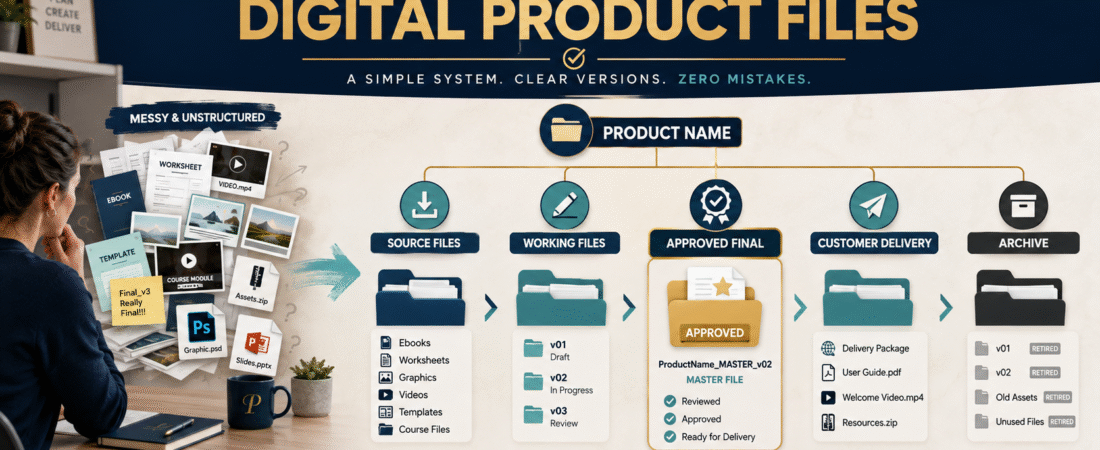
Creating a digital product usually produces far more files than the customer ever sees.
An ebook may begin as research notes, outlines, Word documents, exported PDFs, cover graphics, worksheets, bonus files, screenshots, and several corrected editions.
An online course may add:
- Scripts.
- Videos.
- Audio.
- Slides.
- Transcripts.
- Worksheets.
- Thumbnail graphics.
- Download files.
- Lesson revisions.
Without a simple system, a creator can eventually have files named:
final.pdf
final-new.pdf
final2.pdf
final-fixed.pdf
final-REAL.pdf
final-use-this-one.pdf
That is not version control.
It is a warning that the system depends on memory.
A practical digital-product file system should answer four questions immediately:
- What product does this file belong to?
- What kind of file is it?
- Which version is it?
- Is it safe to give to a customer?
You do not need expensive digital-asset software to accomplish that.
You need a repeatable structure.
Start With One Folder Per Product
Create one main folder for each product.
For example:
AI-Prompt-Planning-Workbook
Inside that folder, create a small number of predictable subfolders.
One practical structure is:
01-Source
02-Working
03-Design
04-Approved-Final
05-Customer-Delivery
06-Marketing
07-Archive
The numbers keep the folders in a logical order.
The names explain their purpose.
You can adjust the structure, but avoid creating dozens of folders before you need them.
What Goes in the Source Folder?
The Source folder contains material used to build the product.
Examples:
- Original notes.
- Research.
- Interview transcripts.
- Reference documents.
- Source images.
- Original spreadsheets.
- Raw recordings.
- Brand assets.
These are not automatically customer-ready files.
They are inputs.
Keeping them separate prevents an unfinished source document from accidentally becoming the download customers receive.
Use the Working Folder for Files Still Being Changed
The Working folder is where active editing happens.
Examples:
AI-Prompt-Workbook-v01.docx
AI-Prompt-Workbook-v02.docx
AI-Prompt-Workbook-v03.docx
Version numbers give you a history.
They are more reliable than:
new
newer
latest
because “latest” changes every time you edit.
Use Simple Version Numbers
You do not need software-development versioning rules for a basic ebook.
A simple pattern works:
v01
v02
v03
When the product is approved:
v04-APPROVED
If you later make an important revision:
v05-APPROVED
This gives you a clear sequence.
Avoid Calling Working Files “Final”
The word final becomes meaningless if you use it every afternoon.
A better system is to reserve a label such as:
APPROVED
for the file that has actually completed review.
That gives the label operational meaning.
For example:
Email-Marketing-Checklist-v07-APPROVED.pdf
Now anyone looking at the folder knows:
- Product.
- Version.
- Status.
- File type.
Keep the Customer Delivery Folder Extremely Clean
This folder should contain only what the buyer currently receives.
Not:
- Drafts.
- Source documents.
- Old editions.
- Notes.
- Alternate designs.
- Temporary files.
For example:
Customer-Delivery
- Email-Marketing-Checklist.pdf
- Quick-Start-Guide.pdf
- Campaign-Worksheet.xlsx
- Bonus-Templates.zip
Notice something important.
The customer-facing filenames can be simpler than your internal working filenames.
Your internal system might contain:
Email-Marketing-Checklist-v07-APPROVED.pdf
The delivery folder might contain:
Email-Marketing-Checklist.pdf
That creates a cleaner customer experience.
Keep the Approved Master Separate
Do not treat the delivery copy as your only approved master.
A useful workflow is:
Working file → Approved master → Customer delivery copy
Why?
Because the customer copy may later be:
- Compressed.
- Renamed.
- Combined into a ZIP file.
- Uploaded to a delivery platform.
The approved master gives you a known clean source from which customer versions can be recreated.
Add Dates Only When They Help
Dates can be useful for:
- Research snapshots.
- Marketing graphics.
- Campaign versions.
- Updated product editions.
A consistent date pattern such as:
2026-08-19
is easier to sort than mixing:
- 8-19-26.
- Aug19.
- August19.
The most important rule is consistency.
Do Not Put Every Detail Into the Filename
This is too much:
AI-Prompt-Workbook-for-Beginners-Updated-Corrected-Final-Version-After-Michael-Review-August-19-2026-v07-Approved.pdf
The folder already provides context.
A better internal filename:
AI-Prompt-Workbook-v07-APPROVED.pdf
Keep names useful rather than encyclopedic.
Build a Product File Map
For larger products, create one small spreadsheet.
Columns:
Product
Asset
Working File
Approved Version
Customer Filename
Customer Location
Last Updated
Status
Example:
| Asset | Approved Version | Customer File | Status |
|---|---|---|---|
| Main Guide | v07 | AI-Prompt-Guide.pdf | Live |
| Worksheet | v03 | Prompt-Worksheet.pdf | Live |
| Bonus | v02 | Bonus-Examples.pdf | Live |
Now you have a product inventory.
Version Control Matters Most During Updates
The danger often appears six months after launch.
You discover:
- Old link.
- Outdated screenshot.
- Incorrect instruction.
- New software requirement.
You update the product.
Which file should be edited?
Which file is currently being delivered?
Which old version should be retained?
A documented system makes that easier.
Your existing guide to creating a low-maintenance digital product update plan provides a useful next layer for deciding when product changes actually deserve a new edition.
Never Overwrite the Only Good Version
Suppose v06 is currently working.
You begin changing it.
Instead of overwriting v06, create:
v07-WORKING
Now you still have the known working version.
If the new edit introduces a problem, you can recover.
Create an Archive Folder
The Archive folder can contain:
- Previous approved editions.
- Retired bonuses.
- Old course scripts.
- Previous cover designs.
- Outdated delivery packages.
Do not keep these inside Customer Delivery.
The archive exists for historical recovery.
Customers should receive only the active version.
Mark Retired Assets Clearly
Suppose Bonus 2 is no longer offered.
Rename or record it as:
Bonus-2-v03-RETIRED
Then move it to Archive.
Do not leave it beside current files.
The goal is to make the wrong choice difficult.
Use the Same System Across Products
A system becomes useful when it is predictable.
If Product A uses:
Source → Working → Approved → Delivery
but Product B uses:
Stuff → New → Final → Maybe
you have not created a system.
Create one standard template folder.
When starting a product:
- Duplicate the folder template.
- Rename it for the product.
- Begin working.
AI Can Help Organize—But Should Not Decide Which File Is Official
AI can help:
- Suggest filenames.
- Categorize assets.
- Create a product inventory.
- Compare document versions.
- Identify duplicate filenames.
- Create an update checklist.
But do not ask AI to guess:
Which file is the real final version?
if the system itself contains no reliable status information.
You need a human approval point.
This fits the broader discipline described in The Five-Level AI Output Verification Process for Beginners.
Automation can organize evidence.
Approval still needs a defined rule.
Create a Release Checklist
Before replacing a customer file:
Content
- Is the correct version approved?
- Are factual updates complete?
- Are links tested?
- Are worksheets included?
File
- Is the filename correct?
- Is the file readable?
- Does it open on another device?
- Is the export complete?
Delivery
- Is the correct file uploaded?
- Did the previous file get replaced intentionally?
- Does the customer-facing link still work?
Archive
- Was the old approved version retained?
- Was the previous version clearly marked as retired?
Product Bundles Need Even More Discipline
Bundles create another layer.
You may have:
- Product A v04.
- Product B v08.
- Bonus C v02.
The bundle itself should record which versions were included.
For example:
Starter-Business-Bundle-v03
contains:
- AI Guide v04.
- Checklist v08.
- Templates v02.
This is especially useful if one component changes independently.
For guidance on combining products around a coherent customer result rather than simply collecting files, see How to Create a Digital Product Bundle That Adds Real Value.
Your File System Should Survive a Handoff
Here is a useful test.
Imagine someone else had to update the product tomorrow.
Could they determine:
- Which file is current?
- Which file customers receive?
- Where the editable source lives?
- Which files are retired?
- What changed last?
If not, the system still depends too much on you remembering everything.
A Simple Digital Product Folder Template
Use:
PRODUCT-NAME
01-Source
02-Working
03-Design
04-Approved-Final
05-Customer-Delivery
06-Marketing
07-Archive
Then add:
Product-File-Map.xlsx
That is enough for many creators.
Conclusion
Digital-product file organization is not glamorous, but it prevents expensive and embarrassing mistakes.
Use one product folder.
Separate source material from working files.
Number revisions.
Reserve APPROVED for files that actually passed review.
Keep customer delivery folders clean.
Archive old versions rather than mixing them with current files.
Most importantly, make the answer to this question obvious:
Which exact file should the customer receive today?
If you can answer that in five seconds, your file system is doing its job.