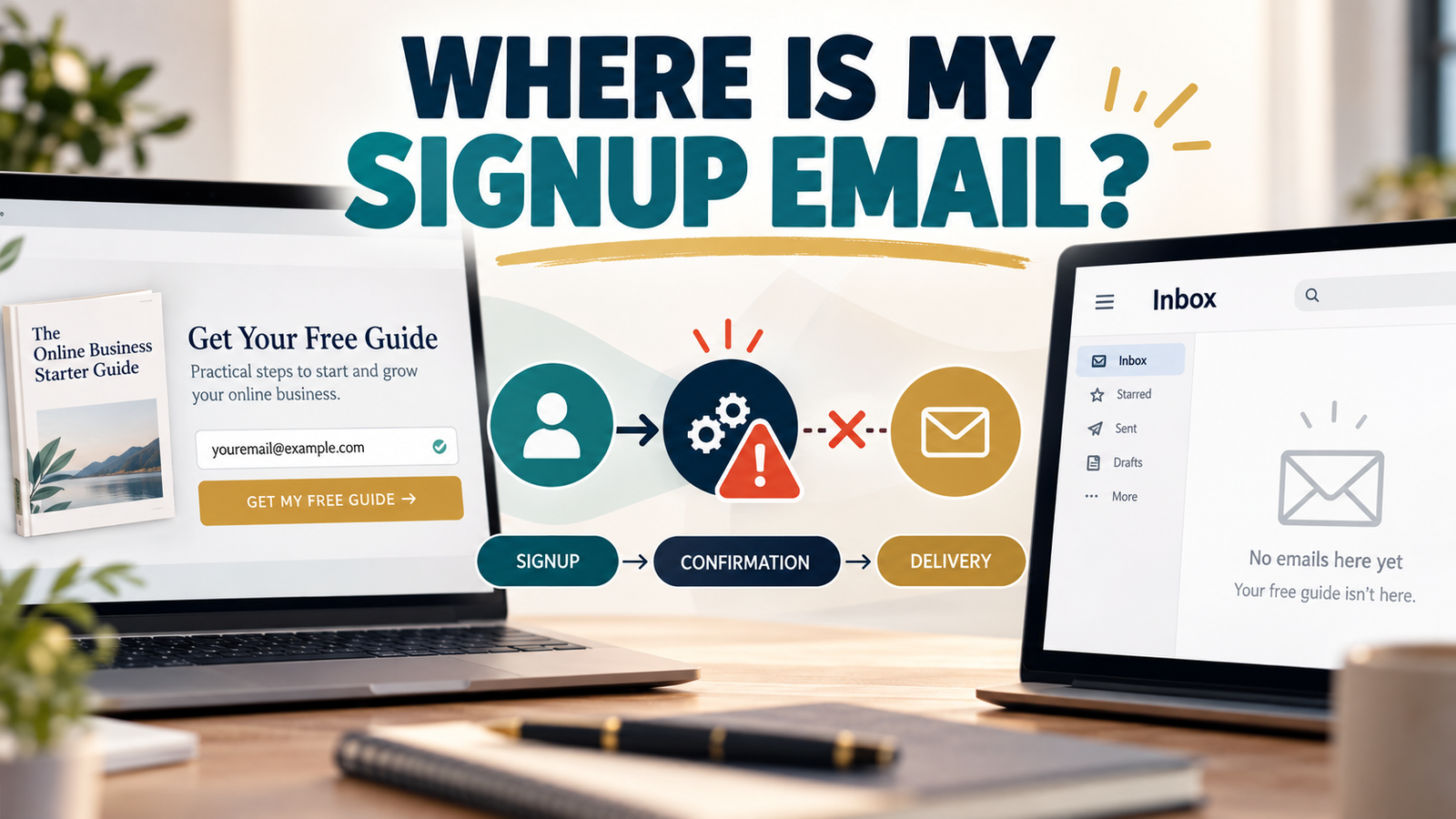
Someone visits your website, enters their email address to receive your free checklist or guide, and submits the signup form.
The form appears to work. But the promised email never arrives.
Perhaps the subscriber expected a welcome email containing the download link. Maybe the email platform requires confirmation before delivering the resource. Or the contact was added to your list without triggering the intended automation.
A lead magnet signup email not received can create two problems: the subscriber cannot access what you promised, and your online business loses an opportunity to begin a useful relationship.
The mistake is assuming every missing email is caused by a spam filter.
An email can fail at several points between the signup form and the subscriber’s inbox.
This guide explains how to identify where the process stopped, determine the likely cause, and correct the specific problem without rebuilding your entire email marketing system.
1. Understand the Lead Magnet Delivery Process
A basic lead magnet system connects several steps:
Signup Form → Subscriber Record → Optional Confirmation → Delivery Email → Free Resource
Some businesses also send a welcome email or follow-up sequence after delivering the resource.
Each step serves a different purpose. The signup form collects the address. Your email platform processes the subscription. Confirmation may be required before delivery. Finally, the system sends the promised resource.
Why a Successful Signup Message Is Not Enough
A website may display “Thank you for subscribing” even when the subscriber has not received an email.
For example, the form might successfully add someone to your list, but the delivery automation could be inactive. Alternatively, the automation might send the message, only for the receiving email service to reject it.
A successful form submission does not prove the entire process worked.
Your first task is to identify which stage failed.
2. Identify Which Email Is Missing
Before troubleshooting, determine which message the subscriber expected to receive.
Opt-In Confirmation Email
If your system uses confirmed opt-in, also called double opt-in, the subscriber normally receives an email containing a confirmation link.
They must complete that step before their subscription becomes confirmed. Depending on your configuration, the free resource may not be delivered until afterward.
Lead Magnet Delivery Email
This message provides the promised checklist, ebook, worksheet, or download instructions.
It may be sent through an automation, autoresponder, or another delivery process configured in your email platform.
Welcome Email
A welcome email introduces your business and explains what subscribers can expect.
Some systems combine the welcome message with resource delivery. Others send separate messages.
These distinctions matter.
If someone never received a confirmation message, investigating a later delivery automation will not resolve the earlier problem.
Identify which email should arrive first, then investigate that stage.
3. Check Whether the Contact Reached Your Email List
Open your email marketing platform and search for the subscriber’s address in the intended list.
The result provides an important starting point.
| Finding | What to investigate |
|---|---|
| No contact record | Form submission or integration |
| Contact pending confirmation | Double opt-in process |
| Active or confirmed contact | Delivery automation or sending |
| Unsubscribed contact | Subscription status and sending eligibility |
| Rejected or bounced address | Address accuracy and delivery |
Exact status labels vary by platform.
If the Contact Does Not Appear
Check the connection between your signup form and email list.
Confirm that the form points to the correct list or audience.
If you use a WordPress form plugin, landing-page builder, or third-party integration, inspect that connection.
For example, you might update a landing page but accidentally leave its signup form connected to an older list.
The visitor can complete the form without entering the intended subscriber workflow.
Correcting the form-to-list connection may resolve the problem without requiring a new landing page.
4. Check Your Double Opt-In Settings
Double opt-in is a common source of confusion because subscribers may not realize confirmation is required.
When confirmed opt-in is enabled, an initial email normally asks the subscriber to verify their address. Until they confirm, later delivery messages may not be sent.
Check the Specific Signup Method
Do not assume every form uses identical confirmation settings.
For example, GetResponse’s official opt-in settings documentation explains that certain landing-page settings can take priority over settings configured for the connected list.
This means list-level settings may not describe the behavior of every signup page.
Check the actual form or landing-page configuration.
Determine whether confirmation is required, whether the confirmation message is configured, and whether the subscriber completed the process.
If the confirmation email is missing, investigate its sending and delivery before examining later messages.
Do not automatically disable double opt-in as a troubleshooting shortcut. First establish how your subscription process is intended to operate.
5. Verify That the Delivery Automation Started
A subscriber can join the correct list and still receive nothing.
This often occurs when the automation responsible for delivering the resource is not properly connected to the signup event.
An automation trigger is the event that begins a workflow.
For example, a workflow might start when a contact joins a particular list or receives a designated tag.
Imagine this configuration:
- Signup Form A adds contacts to List A.
- Delivery Workflow B starts only when contacts join List B.
Both components exist, but the workflow never starts for subscribers using Form A.
Examine the Workflow
Check whether:
- The signup event matches the automation trigger.
- The contact meets the required conditions.
- The workflow is active rather than paused.
- The delivery message is published and eligible to send.
- Any delays or branches are working as intended.
If your platform provides contact-level automation history, review it to determine whether the subscriber entered the workflow and completed each step.
A delivery email saved as a draft will not necessarily send simply because it exists in your account.
Likewise, a correctly written email cannot reach the subscriber when workflow conditions prevent it from running.
Find the exact point where the automation stopped.
6. Determine Whether the Email Was Sent but Not Received
If your email platform shows that the message was sent, the problem may involve delivery or inbox placement rather than automation.
Start by asking the subscriber to search their mailbox using the sender name or subject line.
Relevant folders may include Spam, Junk, Promotions, archived messages, and other filtered inbox locations.
Examine the Sending Status
Your platform may provide information about whether:
- Sending was attempted.
- The receiving service accepted or rejected the message.
- The address bounced.
- A delivery-related error occurred.
Available details depend on your provider.
A message marked as sent does not guarantee that it reached the primary inbox or was read.
Check Sender Authentication
If you send emails using your own domain, review your provider’s domain authentication requirements.
These commonly involve SPF, DKIM, and DMARC.
Proper authentication helps receiving services assess an email’s legitimacy, but it does not guarantee inbox placement.
GetResponse discusses delivery troubleshooting in its official guidance about contacts not receiving newsletters.
If your platform reports rejection or authentication problems, follow the provider’s instructions rather than randomly changing DNS records.
7. Confirm the Subscriber Entered the Correct Email Address
Sometimes the problem is a typing mistake.
A subscriber might enter:
reader@gmial.com
instead of:
reader@gmail.com
Some incorrect addresses produce immediate failures. Others may initially be accepted without revealing the mistake.
When investigating an individual subscriber’s problem, confirm the address they intended to provide.
If the original address was incorrect, the appropriate solution may be to register again using the correct address.
Do not manually mark an address as confirmed unless the required permission has actually been established.
Also avoid exposing subscriber addresses in public screenshots or unnecessary support records.
8. Verify the Lead Magnet Download Link
An email can arrive successfully while the subscriber still cannot access the promised resource.
Open the delivery email as a normal subscriber and test its download link.
Confirm that:
- The link opens the correct resource.
- Access permissions allow the subscriber to use it.
- Required instructions are clear.
- The destination works on mobile devices.
For protected downloads or membership resources, use an appropriate non-administrator test account.
A link that works for a logged-in administrator may not work for a new subscriber.
9. Run a Complete Signup Test With a Fresh Email Address
A full test is often the fastest way to identify the failure.
Use a valid email address you control that has not previously subscribed to the list.
An existing subscriber may behave differently because the contact is already confirmed or has previously entered the automation.
Step 1: Open the Public Signup Page
Visit the same page a new visitor would use.
Do not begin inside your email platform’s administrative interface.
Step 2: Submit the Signup Form
Enter the test email address and submit the form.
Record the message or thank-you page displayed afterward.
Does it explain what the subscriber should expect next?
Step 3: Find the Contact in Your Email Platform
Confirm the contact entered the intended list.
Check whether the subscription is pending or confirmed.
If no contact appears, investigate the form integration.
Step 4: Complete Confirmation if Required
Locate the confirmation email and follow its instructions.
If it does not arrive, investigate that message before continuing.
Step 5: Check the Delivery Email
Look for the promised resource email.
Review the sender name, subject line, and mailbox folders.
Step 6: Open the Free Resource
Click the link and confirm that the correct file or access page works.
Step 7: Check Follow-Up Eligibility
If you use a welcome sequence, verify that the contact meets its entry conditions.
Account for intentional sending delays.
Step 8: Record the Results
Document which stages succeeded and which failed.
After correcting a problem, repeat the test with an appropriate fresh contact.
A configuration change alone does not prove the subscriber experience now works.
10. Use This Diagnostic Table to Find the Failure Point
Instead of changing multiple settings, match the symptom with its likely investigation area.
| Symptom | First area to investigate |
|---|---|
| Form submitted, contact missing | Signup integration |
| Contact awaiting confirmation | Confirmation settings and email |
| Contact confirmed, automation not entered | Workflow trigger |
| Workflow entered, delivery not sent | Conditions, delays, message status |
| Email sent but not found | Address, delivery, inbox placement |
| Email received, download unavailable | Resource link and permissions |
| Free resource delivered, welcome email missing | Follow-up automation |
This approach prevents unnecessary rebuilding.
If the form points to the wrong subscriber list, repairing that connection may be sufficient.
You would not need to replace your email service or create another lead magnet.
Focus on the smallest correction supported by the evidence.
11. Make the Signup Experience Clearer for Subscribers
Your thank-you page should explain what happens after signup.
If confirmation is required, tell visitors to check their email for a confirmation link before expecting the download.
If delivery occurs directly, explain which sender name or subject line to look for.
Avoid promising instant delivery when your workflow intentionally includes a delay.
Keep the resource email recognizable. For example:
Subject: Your Free Content Planning Checklist
Identify the resource near the beginning and provide an obvious access link.
Subscribers should not have to search through promotional text to find what they requested.
12. Avoid Common Troubleshooting Mistakes
Several mistakes can make delivery problems harder to diagnose:
- Assuming the message went to Spam: Verify that sending occurred first.
- Testing with an existing contact: Use a fresh address to test the first-time subscriber process.
- Confusing confirmation with delivery: Check which message should arrive first.
- Changing several settings simultaneously: Make focused corrections based on evidence.
- Rebuilding the entire funnel: Investigate individual connections before replacing working components.
- Failing to retest: Verify the complete subscriber journey after making a correction.
The objective is dependable delivery, not additional complexity.
13. Create a Reusable Lead Magnet Delivery Checklist
Use this checklist when launching a lead magnet or making significant changes to its delivery system.
Signup and Confirmation
- Signup page and form work.
- Contact enters the correct list.
- Subscription status is correct.
- Confirmation email arrives when required.
- Confirmation link works.
Delivery and Follow-Up
- Delivery automation starts.
- Resource email is sent and received.
- Download link opens the correct resource.
- Welcome sequence is connected correctly.
- Test results are documented.
Keep the completed checklist with your lead magnet records so you can repeat the process when necessary.
14. Understand Why Reliable Delivery Matters to Your Online Business
A lead magnet is more than a free downloadable file.
It connects helpful public content to an ongoing relationship with an email subscriber.
A simple business process might look like this:
Helpful Content → Website Visitor → Relevant Free Resource → Email Subscriber → Helpful Follow-Up
If signup or delivery fails, visitors may leave without receiving what they requested.
Even valuable content cannot compensate for a consistently unreliable delivery process.
However, a dependable system does not require complicated software or unnecessary automations.
A beginner can start with one relevant lead magnet, one working signup form, one dependable delivery process, and a manageable follow-up sequence.
The important thing is that the components work together.
Useful Summary
When someone signs up for your lead magnet but never receives the expected email, begin by identifying which message is missing.
Check whether the signup form submitted correctly, the contact entered the appropriate list, and confirmation was required.
Next, determine whether the delivery automation started and whether the email was actually sent.
If sending occurred, investigate the email address, delivery status, and inbox placement.
Finally, confirm that the resource link works for an ordinary subscriber.
The best solution comes from locating the exact failure point rather than changing multiple settings without evidence.
Your Next Action
Choose one active lead magnet signup page on your website.
Using a fresh email address you control, complete the signup process exactly as a new visitor would.
Record whether the contact appears in your email platform, whether confirmation is required, whether the delivery email arrives, and whether the promised resource opens correctly.
If any step fails, correct that specific connection and repeat the test before promoting the signup page further.