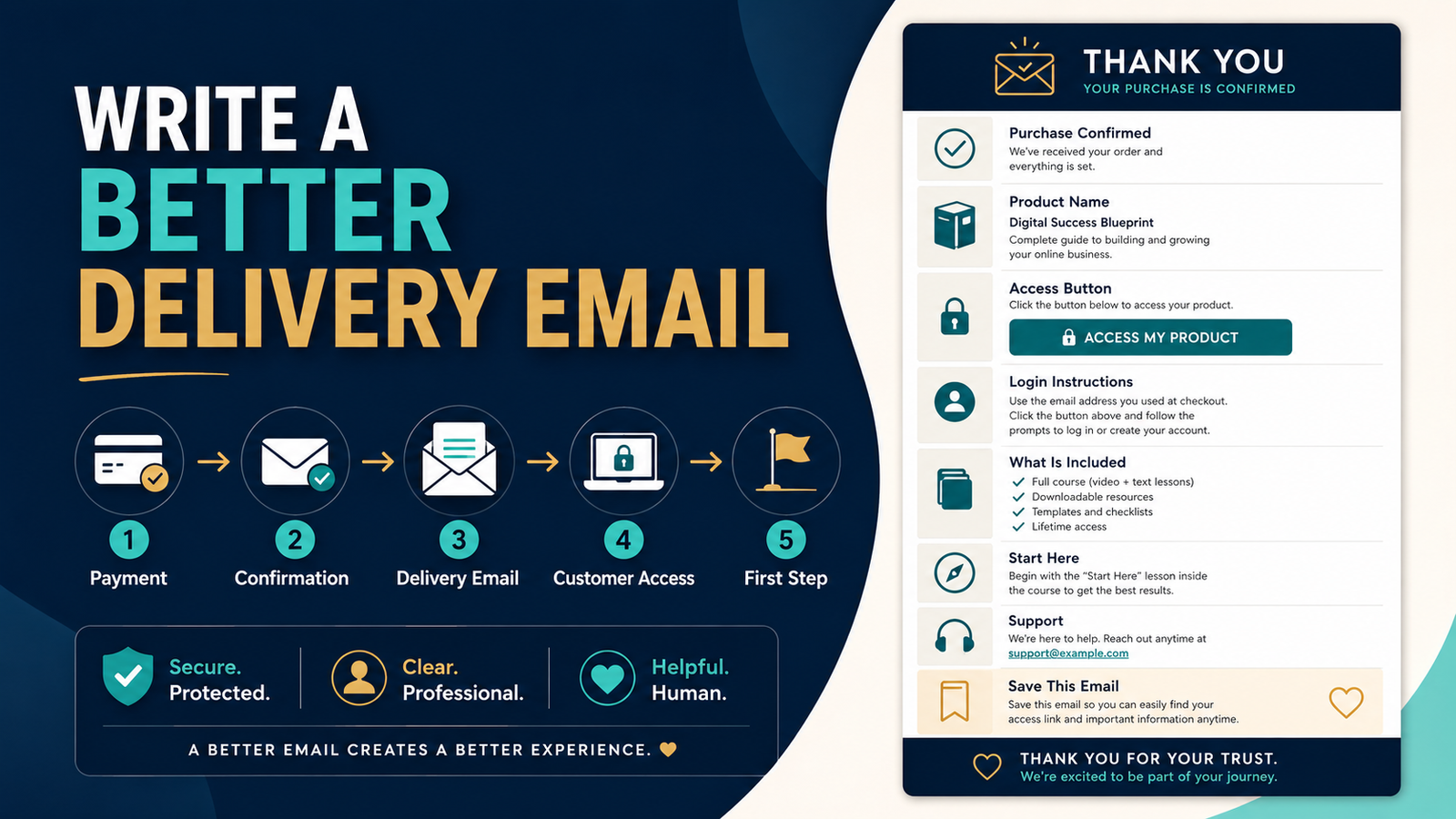
The sale is not complete when the payment succeeds.
From the customer’s point of view, the next question is immediate:
Where is my product?
For digital products, the delivery email may be the first real customer experience after checkout.
If that email is confusing, customers can quickly believe:
- The order failed.
- They bought the wrong product.
- The download is missing.
- Their login does not work.
- The company is unreliable.
A strong delivery email should answer five questions:
- What did I buy?
- How do I access it?
- What should I do first?
- What if access does not work?
- Where do I get help?
Recent 2026 digital-product guidance continues to emphasize that the post-purchase delivery email should give customers direct, practical access information and reduce the need for avoidable support requests.
Start With a Recognizable Subject Line
Avoid:
Important Information
Better:
Your [Product Name] Access Instructions
or:
Here’s Your [Product Name]
or:
Purchase Confirmed — Access [Product Name]
The customer just bought something.
Make the message easy to identify in a crowded inbox.
Confirm the Purchase Immediately
The first line can say:
Thank you for purchasing [Product Name]. Your order was received successfully.
Now the customer knows:
- Payment registered.
- Correct product is identified.
- This email belongs to that purchase.
Do Not Make the Customer Search for the Access Link
If the main purpose of the email is product access, the access button or link should be prominent.
For example:
Access Your Product
[ACCESS THE MEMBER AREA]
or:
[DOWNLOAD YOUR FILES]
Avoid burying the link after six paragraphs of marketing copy.
Tell the Customer What Kind of Access They Should Expect
Different products have different delivery methods.
Ebook
Click the button below to download the PDF.
Course
Click below to open the course login page.
Membership
Use the account you created during checkout to sign in.
Software
Use the license details below and follow the installation instructions.
The customer should not have to guess the delivery model.
Explain the First Step
Suppose your course contains 32 lessons.
Do not tell the customer:
Here’s your login. Good luck.
Say:
Start with the Quick Start lesson before moving into Module 1.
For a workbook:
Begin with the one-page planning sheet on page 3.
For a template pack:
Open the Start Here PDF first.
This lowers cognitive load.
Your Existing Onboarding System Should Connect Here
A delivery email should work together with the broader customer onboarding system for a digital product.
A useful sequence might be:
Purchase → Delivery Email → Access → Quick Start → First Success → Follow-Up
The email is the bridge between payment and actual product use.
Include What the Customer Bought
A simple section:
Your Purchase Includes
- Main Digital Product Guide.
- Quick Start Checklist.
- Planning Worksheet.
- Bonus Templates.
This helps prevent:
I thought there was supposed to be a workbook.
It also provides an easy reference if multiple files are involved.
Do Not Overload the Delivery Email
The customer is focused on access.
This is not the moment for:
- Seven affiliate offers.
- Three upsells.
- Five unrelated blog links.
- A long company story.
- A dozen social buttons.
The primary action should remain:
Get the product.
Include Login Details Carefully
Do not email passwords in plain text if your platform uses a secure account setup or password-creation flow.
Instead say:
Use the email address you entered during checkout.
Then provide:
Login Page: [link]
Forgot Password: [link]
If the system sends a separate password-creation message, explain that clearly.
Explain What to Do if the Customer Cannot Log In
Example:
Having Trouble Accessing the Product?
- Confirm you are using the email address from your purchase.
- Use the Forgot Password link if necessary.
- Check your inbox and Spam folder for the reset message.
- If you still cannot access the product, contact support at [support email].
That can prevent a frustrated message:
Nothing works!
Tell Customers to Save the Email
If the delivery email contains permanent access instructions, say:
Save this email so you can quickly return to your product later.
That small instruction can reduce future search frustration.
Do Not Promise “Lifetime Access” Casually
If your offer genuinely includes a specific access term, state it accurately.
But do not insert:
You have lifetime access forever!
unless that is truly what your purchase terms promise.
Access commitments affect future support and product-retirement decisions.
Use the same terminology on:
- Sales page.
- Checkout.
- Delivery email.
- Customer area.
Match the Email to the Product Version
If you update your product, review the delivery email too.
An old email may say:
Download three files below.
while the current product has:
- One member-area login.
- Six files.
- A new Quick Start guide.
Your low-maintenance digital product update plan should include customer-facing delivery instructions when access changes.
Include Support Without Encouraging Unnecessary Confusion
Support instructions should be clear.
For example:
If you have an access or download problem, contact support@yourdomain.com and include the email address used for your purchase.
That provides enough information for you to locate the order.
Do not ask people to send passwords or full payment-card information.
Separate Receipt From Product Delivery When Necessary
Some payment platforms automatically send a receipt.
Your delivery platform may send product access separately.
If so, make the distinction clear:
Receipt Email
Payment record.
Delivery Email
Product access.
If customers frequently confuse them, change the subject line and instructions.
Test Every Link
Before launch, test:
- Access button.
- Download.
- Login page.
- Password reset.
- Support address.
- Start Here file.
Do not assume a link works because it looked correct in the email editor.
Test on Mobile
Many customers will open the delivery email on a phone.
Check:
- Is the access button large enough?
- Does the login page work on mobile?
- Does the PDF download correctly?
- Is important text readable?
- Are links separated enough to tap?
A delivery email that works only on your desktop is incomplete.
A Simple Delivery Email Template
Subject: Your [Product Name] Access Instructions
Hi [First Name],
Thank you for purchasing [Product Name].
Your order was received successfully, and your product is ready.
Access Your Product
[ACCESS PRODUCT]
Use the email address you entered during checkout when signing in.
Start Here
When you enter the product area, begin with [Quick Start Lesson/File]. It explains how the product is organized and what to complete first.
Your Purchase Includes
- [Item 1]
- [Item 2]
- [Item 3]
Having Trouble?
If you cannot access the product:
- Confirm you are using your purchase email.
- Try the Forgot Password link on the login page.
- Check Spam or Junk for the reset message.
- Contact [support email] if the problem continues.
Please save this email for future reference.
Thank you,
Michael E. Lee
That is simple and functional.
Add One Helpful Follow-Up Email
The delivery email does not need to carry the entire onboarding process.
A follow-up message one or two days later can say:
Were you able to access the product?
Then provide:
- Quick Start reminder.
- One tip.
- Support link.
This can catch problems early.
Use Customer Questions to Improve the Email
Track support requests.
If customers repeatedly ask:
Where is Lesson 1?
add:
Begin with Lesson 1 in the left navigation.
If people ask:
Which file should I download first?
add:
Download the Quick Start Guide first.
Customer support data can become product-delivery improvement data.
Connect the Email to Your FAQ
If you have several recurring access questions, link to a short FAQ.
Your article on building an AI FAQ system for a small online business provides a useful way to organize repeated questions into consistent answers.
But keep the most important access instructions directly inside the email.
Do not require the customer to read a knowledge base before finding the product.
Do Not Automate Without Testing
Automation is useful because every buyer receives the same essential instructions.
But an automated mistake scales too.
If the delivery email contains a broken login URL, every new buyer gets the broken URL.
Test whenever you:
- Change checkout.
- Change domain.
- Move product platform.
- Replace files.
- Rename products.
- Change support address.
Create a Delivery Email Checklist
Before activating:
Purchase
Correct product name?
Access
Correct login or download URL?
First Step
Does the customer know where to begin?
Contents
Does the product list match what was sold?
Support
Is help easy to find?
Mobile
Does everything work?
Automation
Does the correct purchase trigger the correct email?
The Goal Is Customer Momentum
A customer just made a decision.
Do not interrupt that momentum with confusion.
The ideal sequence feels like:
I bought it.
I received the email.
I clicked the button.
I know where to start.
It works.
That is the customer experience your delivery email should create.
Conclusion
A digital-product delivery email should not try to impress the customer.
It should help the customer succeed.
Confirm the purchase.
Make access obvious.
Explain what was included.
Tell the customer what to do first.
Provide a simple recovery path if access fails.
Then test the complete experience yourself.
The fewer questions a new buyer has between payment and first use, the stronger your delivery system becomes.