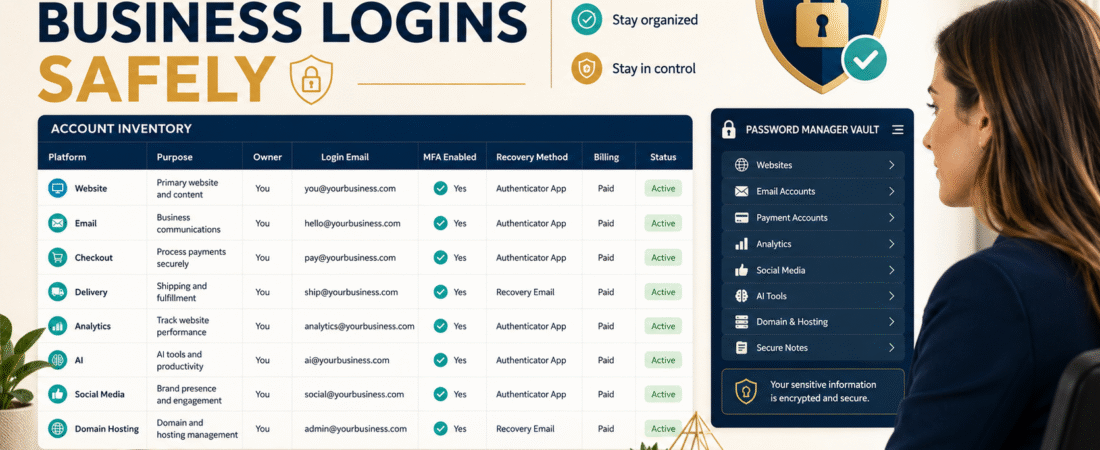
A small online business can accumulate online accounts faster than expected.
You may have separate logins for:
- Domain registrar.
- Website hosting.
- WordPress.
- Email marketing.
- Checkout.
- Digital-product delivery.
- Payment processors.
- Google Analytics.
- Search Console.
- Canva.
- AI tools.
- Video software.
- Social media.
- Affiliate networks.
- Cloud storage.
After a while, the problem becomes:
What accounts do I have, which email address owns them, and how would I regain access if something happened?
The wrong solution is creating a spreadsheet containing every username and password in plain text.
A better system separates two things:
Account inventory
from
credential storage.
Your account inventory documents what exists.
A reputable password manager protects the actual credentials.
Current CISA guidance recommends long, random, unique passwords, using password managers to create and remember strong passwords, and enabling multifactor authentication.
Start With an Account Inventory
Create a spreadsheet containing:
Platform
Purpose
Website
Account Owner
Login Email
MFA Enabled?
Recovery Email/Method
Billing Method
Renewal Date
Status
Password Manager Entry Name
Notice what is missing:
Password
Do not put the password in the spreadsheet.
Why an Account Inventory Matters
Imagine your email-marketing account suddenly locks you out.
You need to know:
- Which email address owns it?
- Which recovery account is attached?
- Is MFA enabled?
- Where is the recovery code stored?
- Who pays for it?
- What business process depends on it?
That is operational information.
It belongs in the inventory.
Keep Passwords in a Password Manager
CISA recommends password managers because they help people generate and store strong, unique passwords rather than reusing memorable credentials across accounts.
A password manager can generally help you:
- Generate random passwords.
- Store credentials.
- Autofill logins.
- Avoid password reuse.
- Share credentials more safely when supported.
- Organize account records.
Select a reputable provider and review its current security, recovery, export, and sharing capabilities before relying on it.
Why Password Reuse Is Dangerous
Suppose you use the same password for:
- Canva.
- WordPress.
- Email platform.
- Affiliate network.
If one credential becomes compromised, attackers may try the same combination elsewhere.
A unique password limits that chain reaction.
The goal is not creating one clever password.
It is making each important account independent.
Use Multifactor Authentication
MFA requires another factor beyond the password.
CISA says MFA makes unauthorized access more difficult and recommends phishing-resistant methods where available for business accounts.
Enable MFA particularly for:
- Primary email.
- Domain registrar.
- Hosting.
- WordPress administration.
- Payment processors.
- Password manager.
- Cloud storage.
- Social accounts.
- Affiliate/payment accounts.
Your primary email deserves special attention because password-reset messages for other services often arrive there.
Start With the Accounts That Control Everything Else
Not every login has equal importance.
Prioritize:
Tier 1 — Business Control Accounts
- Primary email.
- Domain registrar.
- Hosting.
- Password manager.
- Payment processor.
Tier 2 — Revenue and Customer Systems
- Checkout.
- Product delivery.
- Email marketing.
- Affiliate systems.
Tier 3 — Production Tools
- AI.
- Graphics.
- Video.
- Writing.
- Cloud storage.
Tier 4 — Optional Tools
- Trials.
- Rarely used apps.
- Old software.
Secure Tier 1 first.
Record the Correct Login Email
Many access problems happen because the owner cannot remember which email address was used.
Your inventory can say:
Platform: Example Hosting
Login Email: admin@company.com
Password Vault Entry: Example Hosting — Primary
MFA: Yes
Now you know where to look.
Document Account Ownership
Avoid a business-critical account permanently tied to:
- Former employee.
- Contractor’s personal email.
- Old agency.
- Family member’s address.
- Email account you no longer control.
The account inventory should make ownership visible.
If a business system relies on another person’s personal account, investigate whether ownership should be transferred properly.
Keep Recovery Codes Secure
Some services provide backup recovery codes when MFA is enabled.
Those codes can bypass the normal authentication process.
Do not leave them:
- On your desk.
- In an unprotected spreadsheet.
- In an email labeled “PASSWORDS.”
- Inside the same insecure folder as everything else.
Store them according to the security options supported by your password manager or other protected recovery process.
Document Dependencies
Suppose your website plugin sends leads into your email platform using an API connection.
Your inventory can include:
Depends On: WordPress lead form.
Or maintain a separate integration map.
That helps if you cancel an account.
Before deleting software, you can ask:
What breaks?
This connects naturally with your simple online-business starter stack, because a manageable tool stack is much easier to secure and document than dozens of forgotten accounts.
Track Billing Too
The account inventory can also answer:
- Monthly or annual?
- Renewal date?
- Which card/account is used?
- Who owns the billing profile?
Do not store full credit-card numbers.
You might record:
Billing: Business Visa ending 1234
That is enough for recognition.
Mark Old Accounts
Use statuses:
Active
Trial
Paused
Cancel Pending
Retired
Then review retired accounts.
If you no longer need them:
- Export required data.
- Remove integrations.
- Transfer important files.
- Cancel according to vendor procedures.
- Revoke unnecessary access.
Do not keep abandoned accounts forever without reason.
Remove Access When Someone No Longer Needs It
If another person helped with:
- Website.
- Design.
- Email.
- Course setup.
they may have been given access.
When the work ends, review permissions.
Do not assume access disappeared automatically.
Never Share Your Master Password
Your password-manager master credential protects everything in the vault.
Do not casually share it.
If a password manager provides team or family sharing features, use the intended sharing system rather than handing someone the credential that unlocks the entire vault.
Create an Emergency Access Plan
Your business should not become permanently inaccessible if the primary owner becomes unavailable.
Depending on the password manager and account structure, consider:
- Emergency access features.
- Trusted recovery person.
- Secure written recovery instructions.
- Appropriate business-continuity documentation.
Do not weaken day-to-day security to achieve this.
The goal is controlled emergency access, not open access.
Write an Account Setup SOP
When adding a new business tool:
- Confirm the tool is actually needed.
- Use the correct business email.
- Generate a unique password.
- Store it in the password manager.
- Enable MFA where available.
- Secure recovery codes.
- Add the account to the inventory.
- Record billing.
- Record integrations.
- Add cancellation/recovery notes when useful.
You can document this as an SOP using the same principles in How to Create an SOP With AI for the Business Tasks You Repeat.
Review the Inventory Quarterly
Once every three months:
- Confirm active accounts.
- Check account owners.
- Verify MFA.
- Find abandoned trials.
- Review recovery methods.
- Remove outdated user access.
- Review billing.
- Check integration dependencies.
This does not need to become a cybersecurity project.
It is basic business housekeeping.
A Simple Account Inventory Example
| Platform | Purpose | Login Email | MFA | Vault Entry | Status |
|---|---|---|---|---|---|
| Hosting | Websites | admin@domain | Yes | Hosting — Main | Active |
| Email Platform | Subscribers | marketing@domain | Yes | Email — Main | Active |
| Old Design Tool | Graphics | admin@domain | No | Design — Old | Retired |
No passwords appear.
What About AI Tools?
AI accounts may contain:
- Uploaded files.
- Prompts.
- Product drafts.
- Business information.
Treat them like other business accounts.
Use:
- Unique passwords.
- MFA where offered.
- Appropriate privacy settings.
- Controlled sharing.
Do not assume an AI account is unimportant because it does not directly handle money.
Security Is Also a Simplicity Problem
Every unnecessary business account adds:
- Another credential.
- Another billing relationship.
- Another potential integration.
- Another recovery process.
- Another place where data may live.
Reducing software clutter can improve both operations and security.
Do Not Store Sensitive Credentials in SOPs
Your SOP can say:
Log in using the credential stored in the password manager under “WordPress — Main Site.”
It should not say:
Password: SuperSecret123.
The procedure and the secret should remain separate.
Create One Recovery Test
Choose a noncritical account.
Confirm:
- You know the login email.
- The password-manager entry works.
- MFA works.
- Recovery method is current.
Then repeat the process with your most important accounts carefully.
A recovery plan you have never checked may contain outdated assumptions.
Conclusion
You need two systems for online-business logins:
An account inventory that explains what exists.
A secure credential system that protects the actual passwords.
Do not combine them into an unsecured password spreadsheet.
Document the platform, purpose, owner, login email, MFA status, recovery method, billing, and status.
Store unique credentials inside a reputable password manager.
Enable MFA on critical accounts.
That gives you something better than a list of passwords.
It gives you a recoverable access system.