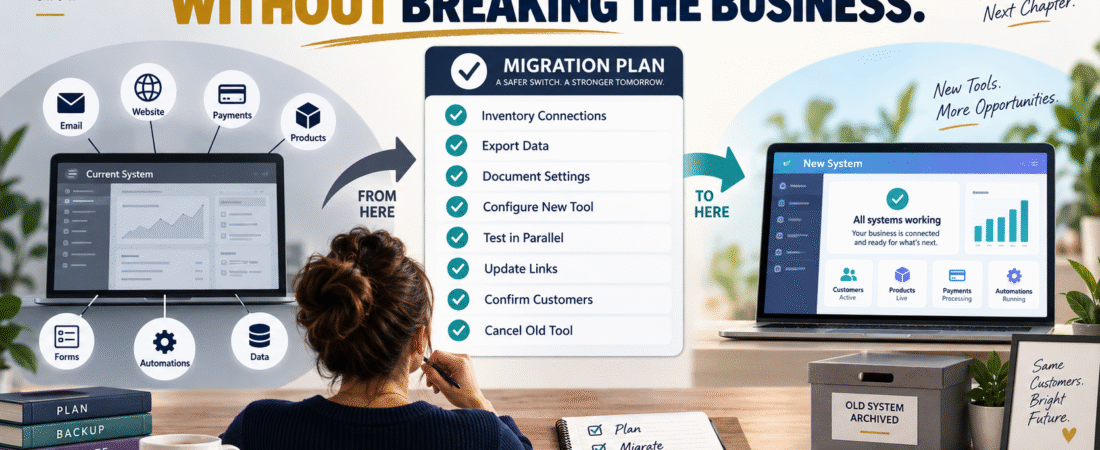
Changing software can look simple from the outside.
Cancel the old account.
Open the new account.
Move the data.
Done.
In a real online business, one software tool may be connected to several other systems.
Your email platform might connect to:
- Signup forms.
- Lead magnets.
- Landing pages.
- Automations.
- WordPress.
- Checkout software.
- Customer tags.
- Affiliate campaigns.
Your digital-product platform might connect to:
- Checkout.
- Payment processing.
- Customer accounts.
- Email.
- Courses.
- Support.
- Download links.
If you cancel the old tool before understanding those connections, a small software change can create multiple hidden failures.
A safer workflow is:
Inventory → Back Up → Map Connections → Configure New Tool → Migrate → Test in Parallel → Update Public Links → Verify → Cancel Old Tool
The key rule is:
Do not cancel the old system simply because the new account has been created.
Cancel it after the new workflow has been proven.
Why Software Replacement Is a Business-System Project
Suppose you replace an email platform.
The obvious task is moving subscribers.
But what about:
- Forms embedded on three websites?
- Lead magnet delivery?
- Welcome sequences?
- Tags?
- Unsubscribe records?
- Affiliate links pointing to old landing pages?
- Tracking parameters?
- Automations triggered by checkout?
- Confirmation pages?
The subscriber export may take ten minutes.
Finding every connection may take longer.
That is why migration begins with the system map.
Step 1: Write Down What the Old Tool Does
Do not begin with its feature list.
Record how you use it.
For example:
Email Platform
Current jobs:
- Stores subscribers.
- Hosts two signup forms.
- Delivers three lead magnets.
- Sends welcome series.
- Sends weekly newsletter.
- Receives customers from checkout.
- Applies product-purchase tags.
- Tracks campaign links.
Now you know what must survive the migration.
Step 2: Identify Everything Connected to It
Create four columns:
Connection
What external system connects?
Direction
Does data go into or out of the tool?
Purpose
Why does the connection exist?
Migration Action
What needs to change?
Example:
| Connection | Direction | Purpose | Migration Action |
|---|---|---|---|
| WordPress Form | Into Email | Add lead | Replace embed |
| Checkout | Into Email | Tag buyer | Reconnect |
| Email Link | Out to Website | Send traffic | Verify |
| Lead Magnet | Out to File | Delivery | Retest |
This prevents an invisible integration from being forgotten.
Step 3: Check the Renewal Date Before Starting
A migration planned two days before annual renewal creates unnecessary pressure.
Review:
- Renewal date.
- Cancellation deadline.
- Export restrictions.
- Data retention after cancellation.
- Refund policy.
- Downgrade options.
If possible, give yourself overlap.
Your software subscription renewal calendar can help identify migrations early enough to avoid rushed decisions.
Step 4: Export Before You Change Anything
Before disconnecting the old system, preserve what you can.
Depending on the tool, this may include:
- Subscribers.
- Customer records.
- Product files.
- Reports.
- Transaction history.
- Email templates.
- Automation documentation.
- Course content.
- Member lists.
- Analytics exports.
- Account settings.
Do not assume the platform will remain accessible after cancellation.
Treat cancellation as though access could disappear.
Step 5: Document Settings That Cannot Be Exported
Some configurations may not export neatly.
Take notes or screenshots of:
- Automation logic.
- Tags.
- Segments.
- Integrations.
- Email timing.
- Form settings.
- Product access rules.
- Checkout settings.
- Domain configuration.
Do not capture passwords or sensitive credentials in ordinary screenshots.
Document the configuration—not the secret.
Step 6: Make a Backup Independent of Both Platforms
If the migration is from Tool A to Tool B, do not make Tool B the only backup of Tool A.
Keep an independent copy of important data.
For example:
Old Platform → CSV Export → Secure Business Backup
and then:
CSV → New Platform
Now if the import fails, the original export still exists.
My guide to backing up your online business without making the system complicated explains how to maintain independent recovery copies.
Step 7: Configure the New System Before Sending Real Traffic
Create:
- Lists.
- Tags.
- Products.
- Automations.
- Forms.
- Pages.
- Integrations.
Use clear names.
Do not copy years of unused clutter just because it exists in the old account.
Migration is a good opportunity to remove:
- Old tags.
- Retired forms.
- Dead automations.
- Obsolete products.
- Duplicate lists.
Move what the business still needs.
Step 8: Import Data Carefully
Before importing 50,000 records, test with a small sample when the platform allows it.
Check:
- Fields map correctly.
- Names are preserved.
- Tags are correct.
- Dates are handled correctly.
- Duplicates are understood.
- Suppression or unsubscribe status is preserved appropriately.
Email migrations deserve special care.
Do not accidentally re-add people who previously unsubscribed merely because an old CSV contains their email address.
Step 9: Run the New and Old Systems in Parallel When Possible
Overlap can reduce risk.
For example:
Day 1:
Configure new platform.
Day 2:
Import test data.
Day 3:
Connect one test form.
Day 4:
Test automation.
Day 5:
Move primary form.
During this period, keep the old system available.
You are creating a rollback option.
Step 10: Test From the Customer Side
Do not test only from the administrator dashboard.
Pretend you are a visitor.
If replacing an email platform:
- Visit the public signup page.
- Submit a fresh email.
- Confirm the contact enters the correct list.
- Confirm tags.
- Confirm delivery email.
- Click the resource.
- Confirm follow-up automation.
If replacing product delivery:
- Complete a test purchase.
- Check confirmation.
- Check email.
- Open customer account.
- Access product.
- Test mobile.
- Test support instructions.
The system is not migrated until the customer journey works.
Step 11: Update Public-Facing Links
Old software can remain hidden in places you forget.
Search:
- Website pages.
- Blog posts.
- Buttons.
- Menus.
- PDFs.
- Lead magnets.
- Emails.
- Social profiles.
- YouTube descriptions.
- QR codes.
- Affiliate materials.
If the old tool hosted a landing page, the old URL may appear in dozens of places.
Build a replacement list before cancellation.
Step 12: Update Documentation
If the business changes tools, documentation should change too.
Update:
- SOPs.
- Login inventory.
- Emergency plan.
- Product instructions.
- Customer support templates.
- Subscription calendar.
Your secure login inventory should identify the new account without storing the password itself. See how to organize online-business logins without storing passwords in a spreadsheet for that structure.
Step 13: Verify Data Counts
Do not rely on:
“The import says successful.”
Compare important totals.
For example:
Old platform active subscribers: 4,820
New platform imported active subscribers: 4,817
A three-record difference may be explainable.
But investigate.
Likewise:
- Customers.
- Products.
- Files.
- Course students.
- Tags.
- Automations.
You do not need every dashboard number to match because platforms measure differently.
You do need to understand material discrepancies.
Step 14: Check the Systems That Depend on the New Tool
After migration, test the integrations again.
Examples:
Checkout → Email
Purchase should apply correct tag.
WordPress → Email
Signup should create subscriber.
Payment → Product Delivery
Successful payment should grant access.
Email → Website
Links should open correct pages.
The new platform may work perfectly by itself while an external integration remains broken.
Step 15: Keep the Old System Until the New One Survives Real Use
A successful test is important.
Real operation is better evidence.
When practical, allow the new system to run through a normal business cycle.
For email:
- Real subscribers join.
- Broadcast sends.
- Automations complete.
For product delivery:
- Real or controlled transactions process.
- Customer access works.
- Support receives no unusual problems.
Then consider cancellation.
Step 16: Cancel Intentionally
Before clicking Cancel, confirm:
- Required data exported.
- New system working.
- Integrations tested.
- Old public links replaced.
- Billing records saved.
- Important reports saved.
- Customer data preserved appropriately.
- Old account no longer required.
Then record:
Old Tool:
Canceled:
Final Access Date:
Replacement:
Data Archive Location:
Reason for Change:
This gives the business a history.
Do Not Delete the Old Documentation Immediately
Archive old SOPs and screenshots.
Label them:
RETIRED — OLD PLATFORM
Why keep them temporarily?
Because a customer may contact you about:
- An old purchase.
- An old email.
- An old access link.
- An old invoice.
Historical documentation can help you understand what happened.
A Simple Software Migration Checklist
BEFORE MIGRATION
- Define old tool’s jobs.
- Map integrations.
- Check renewal date.
- Export data.
- Save important reports.
- Document settings.
- Create independent backup.
NEW PLATFORM
- Configure account.
- Create lists/products.
- Configure tags.
- Configure automations.
- Import test data.
- Import remaining data.
- Connect integrations.
TEST
- Test website forms.
- Test email.
- Test checkout.
- Test product access.
- Test mobile.
- Test external links.
- Compare record counts.
CUTOVER
- Replace public links.
- Update documentation.
- Monitor real use.
- Confirm no major failures.
CANCELLATION
- Save final records.
- Confirm replacement.
- Cancel old system.
- Record cancellation.
- Archive old documentation.
Conclusion
Replacing business software should not begin with cancellation.
Begin by understanding everything the tool touches.
Inventory the old system.
Export important data.
Map integrations.
Configure the replacement.
Test it from the customer side.
Run the systems in parallel when practical.
Update public links and documentation.
Then cancel the old platform only after the new workflow has proven itself.
The goal is not merely to move data.
It is to preserve the business process.
Before replacing your next software subscription, create one page titled:
Software Migration Map
List every connection to the old tool.
That one step can prevent many of the problems that turn an ordinary software change into a business interruption.