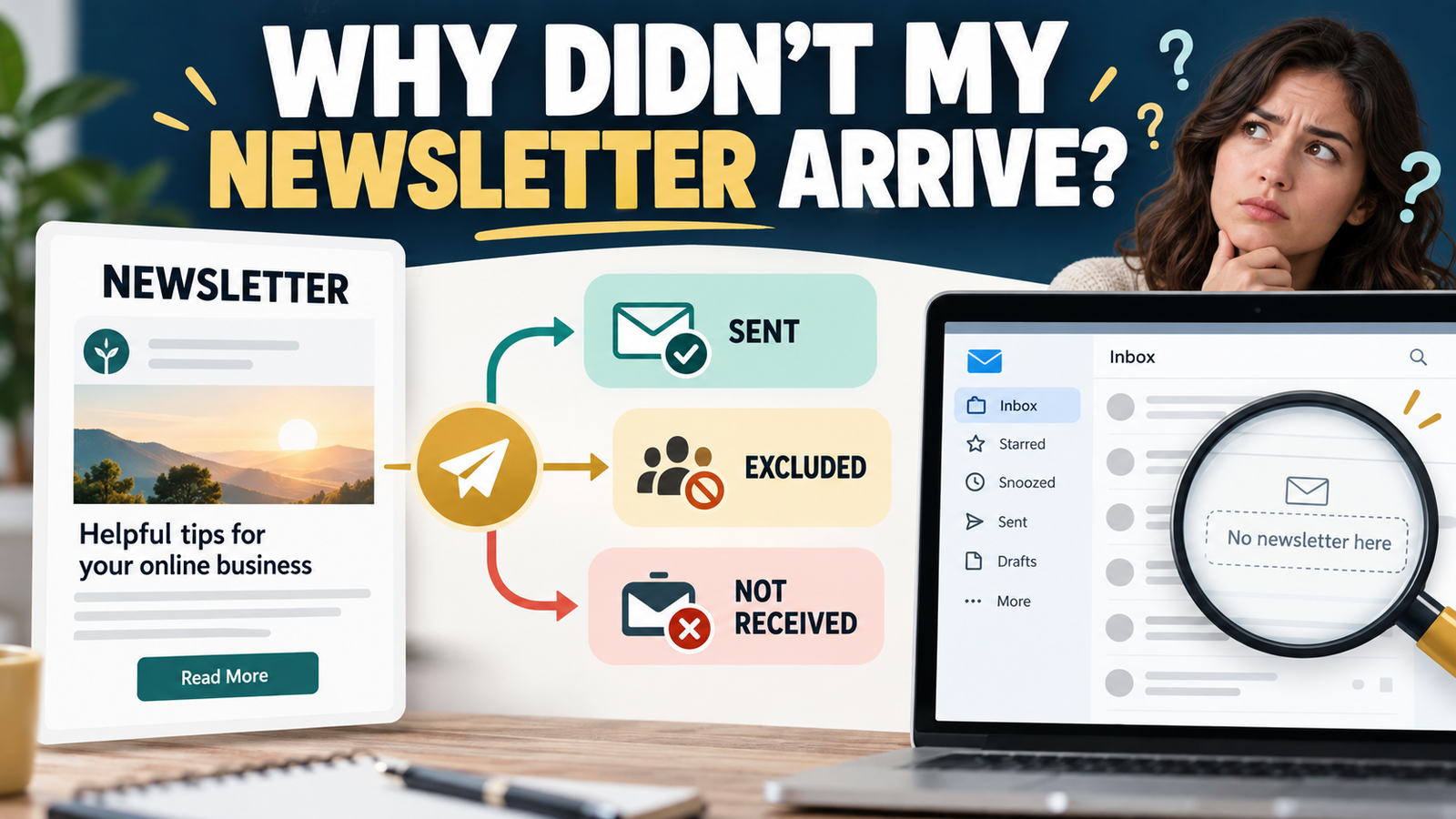
You create an email newsletter, select your audience, and send the message to your subscribers.
Everything appears normal.
But later, someone tells you they never received the email.
Perhaps several subscribers report the same issue. Maybe your email marketing platform shows a smaller recipient count than you expected.
This creates an important question: Why is your newsletter not delivered to everyone you intended to reach?
The answer is not always a spam filter.
Some contacts may have been excluded before sending. Others may no longer be active subscribers. Your campaign might be scheduled, paused, or affected by account restrictions. And sometimes a message is sent successfully but does not appear in the recipient’s primary inbox.
The solution is to identify exactly where the newsletter stopped moving through the sending process.
This guide explains how to troubleshoot ordinary newsletter broadcasts, determine why specific subscribers did not receive them, and correct the actual problem without rebuilding your email marketing system.
1. Understand the Difference Between Sending and Receiving
One of the biggest email marketing misunderstandings is assuming that pressing Send means every person on your list received the message.
Several steps occur between creating a newsletter and having it appear in a subscriber’s inbox.
A simplified process looks like this:
Newsletter Created → Recipients Selected → Campaign Sent → Receiving Mail Service Processes Message → Subscriber Finds Email
Each stage can produce a different outcome.
For example, your email platform might exclude a contact before sending because the person unsubscribed.
In that case, the message never enters the delivery process for that address.
Alternatively, the platform might send an email that the receiving mail service later rejects.
A third possibility is that the receiving service accepts the message but places it somewhere other than the primary inbox.
These situations require different responses.
Three Questions to Ask First
Before changing anything, determine:
- Was the newsletter actually sent?
- Was the affected subscriber included in the intended recipients?
- If the message was sent to that address, what delivery information is available?
These questions create a practical investigation sequence.
Without them, you may waste time modifying your email content when the real problem is an incorrectly selected subscriber segment.
2. Verify That the Newsletter Was Actually Sent
Begin by opening the campaign inside your email marketing platform.
Do not rely on remembering that you clicked a sending button.
Check its actual status.
Depending on the software and settings, a newsletter might be saved as a draft, scheduled for a later time, currently sending, or already sent.
For example, GetResponse’s official newsletter troubleshooting documentation identifies campaign status as one of the first things to investigate.
If the Newsletter Is Still a Draft
A draft has not completed the normal sending process.
Review the message, choose the intended recipients, and complete the required sending steps.
Confirm the final status afterward.
If the Newsletter Is Scheduled
Check the scheduled date and time.
Also determine whether you enabled any timing optimization feature that may distribute messages at different times.
For example, some platforms can optimize delivery timing based on subscriber behavior rather than delivering every message simultaneously.
A subscriber receiving an email later than expected does not necessarily indicate a failure.
If the Newsletter Was Sent
Record the campaign name, sending date, and available recipient statistics.
You now have a specific campaign to investigate.
This information is especially useful when contacting platform support.
3. Check Whether You Selected the Correct Recipient List
An email newsletter can send successfully while missing a large portion of your intended audience.
One common cause is selecting the wrong contact list or segment.
Imagine that your business uses two lists.
The first contains people who subscribed through your main website.
The second contains people who downloaded a particular free resource.
You create a newsletter and accidentally select only the second list.
The campaign sends correctly, but subscribers on the first list do not receive it.
Nothing necessarily failed technically.
The recipient selection was incomplete.
How to Investigate
Open the campaign’s recipient settings or sending summary.
Confirm which lists and segments were selected.
Then compare that selection with the audience you actually wanted to reach.
Ask:
- Was the correct list included?
- Did I accidentally choose an old list?
- Was a segment selected instead of the complete intended audience?
- Were specific contacts manually included or excluded?
- Does the reported recipient count make sense?
In GetResponse, the newsletter recipient selection guide describes choosing lists, segments, and individual contacts.
An especially important distinction is that a contact’s presence somewhere in your account does not automatically mean that contact was selected for a particular campaign.
4. Review Subscriber Status Before Troubleshooting Delivery
Next, investigate whether the affected subscriber was eligible to receive the newsletter.
Search for the person’s email address in your email platform.
Look at their current subscription status and, where available, relevant contact history.
A subscriber can exist in your database without being an active recipient.
For example, someone may have unsubscribed from marketing messages.
Another person’s address may have been removed from active sending after a permanent delivery failure.
Someone else might not have completed the confirmation process required by your signup method.
Common Subscriber Situations
| Subscriber status or condition | Why it matters |
|---|---|
| Active and eligible | Continue checking recipient selection and delivery |
| Unsubscribed | The contact should not receive ordinary marketing newsletters |
| Pending confirmation | Eligibility may depend on confirmation requirements |
| Hard bounced | The address may be permanently unreachable |
| Excluded or suppressed | A campaign rule may intentionally prevent sending |
| Not found in the intended list | The contact may belong elsewhere or have been removed |
Exact labels and behavior vary by provider.
Do not manually reactivate someone who unsubscribed simply to make your recipient numbers larger.
Marketing permission matters.
If someone wants to receive future newsletters, follow the platform’s proper resubscription process and applicable consent requirements.
The objective is to reach people who are legitimately eligible and interested in receiving your messages.
5. Investigate Suppression Lists and Exclusion Settings
Suppression lists can be particularly confusing because they may exclude recipients who otherwise appear eligible.
A suppression list is a group of email addresses or domains that your email platform can exclude from a campaign.
Businesses use suppression rules for legitimate purposes, such as honoring opt-outs or avoiding certain recipients.
However, an incorrectly configured exclusion can remove contacts you intended to include.
Example: An Accidental Exclusion
Suppose you create a segment containing people who purchased a particular digital product.
Later, you use that segment as an exclusion for a promotional newsletter.
That may be appropriate when you do not want existing buyers to receive an offer for something they already purchased.
But if you reuse the exclusion for a general educational newsletter, those customers may also miss information they would appreciate.
The problem is not necessarily email deliverability.
It is campaign targeting.
How to Check
Inspect the newsletter’s exclusion settings.
Review whether you excluded:
- A full subscriber list.
- A saved contact segment.
- A suppression list.
- Recipients of a previous campaign.
- Individual email addresses.
GetResponse documents these options in its guide to excluding newsletter recipients.
If you discover an incorrect exclusion, correct it for future campaigns.
Do not remove legitimate suppression rules or override unsubscribes.
Make sure you understand why each exclusion exists before changing it.
6. Determine Whether the Email Was Sent but Not Delivered
Suppose your recipient settings are correct, the subscriber is active, and the campaign was sent.
The next question is whether the email platform attempted delivery to that specific address.
Check your campaign statistics and any available contact-level message history.
Look for information about sending, delivery failures, or bounces.
Understand Hard Bounces
A hard bounce generally indicates a permanent delivery problem.
For example, an email address might not exist.
If a contact’s address has permanently failed, the platform may prevent further sending to that address.
Repeatedly attempting to send to an invalid address is not a useful troubleshooting strategy.
First confirm whether the subscriber supplied the correct address.
Understand Temporary Failures
A temporary delivery problem may occur when a receiving mail service is unavailable, a mailbox has a temporary issue, or the receiving system temporarily rejects the message.
Your email platform may retry delivery according to its own procedures.
Do not assume that every bounce has the same cause.
Investigate the status and provider explanation before deciding what to do.
Keep Sending Statistics in Perspective
An email platform reporting that a message was sent does not necessarily mean the subscriber read it.
Likewise, successful delivery reporting does not always tell you exactly which inbox folder contains the message.
These measurements describe different stages of the process.
Avoid interpreting one metric as proof of everything that happened afterward.
7. Check the Subscriber’s Inbox and Filtering Rules
If your platform indicates that sending occurred without an obvious rejection, ask the subscriber to search their mailbox.
Encourage them to search using the newsletter’s subject line or sender address.
They should also check folders or categories where filtered messages might appear.
Depending on their email service, these may include Spam, Junk, Promotions, Updates, or other automated folders.
An email may also have been archived or moved by a personal inbox rule.
Give Subscribers Clear Information
When helping someone locate a newsletter, provide:
- The sender name.
- The sender email address.
- The newsletter subject line.
- The approximate sending date.
This is more effective than simply saying, “Check your spam folder.”
A subscriber who recognizes the message is better equipped to find it.
If they locate the email in an unexpected folder, they may be able to adjust their own inbox preferences or add your address to their contacts.
However, no sender can guarantee that every future email will reach the primary inbox.
Inbox placement is influenced by receiving mail services and other factors outside the sender’s direct control.
8. Verify Your Sending Domain Authentication
Sometimes newsletter delivery problems involve the identity of the sending domain.
Email authentication helps receiving systems evaluate whether a message is legitimately associated with the domain it claims to represent.
Common authentication technologies include SPF, DKIM, and DMARC.
You do not need to become an email infrastructure specialist to understand the practical importance.
Your email marketing provider should have documentation explaining its supported authentication setup.
Why Domain Authentication Matters
Imagine that your business sends newsletters from an address using its own website domain.
The receiving email service needs a way to evaluate whether the message has been authorized and properly authenticated.
Misconfigured authentication can interfere with delivery and create avoidable trust problems.
GetResponse recommends properly authenticating custom sending domains, as explained in its domain authentication documentation.
What to Check
Review your email marketing account for authentication warnings.
Confirm that the From address is configured and verified according to your provider’s requirements.
If your provider identifies a missing or incorrect authentication record, follow its official setup instructions.
Do not create random DNS records or duplicate SPF entries based on guesses.
Incorrect changes may affect email delivery or other services using your domain.
Also remember that authentication is not a guarantee of inbox placement.
It addresses an important part of sender legitimacy, not every factor involved in deliverability.
9. Determine Whether Your Email Account Has Sending Restrictions
Occasionally, the problem affects more than individual subscribers.
You might notice that an entire newsletter failed to send or that messages remain delayed without a clear explanation.
In this situation, review your email platform’s account notifications.
Depending on the service, sending may be restricted by account verification requirements, compliance reviews, billing issues, or other account conditions.
For example, GetResponse identifies account billing and identity review as potential causes of newsletters not being sent.
Look for Account-Level Clues
Check whether:
- Your platform displays a sending restriction.
- An account review is pending.
- There is an unresolved billing issue.
- A sending-domain warning requires attention.
- Your campaign is still processing.
- The service has provided an error or explanatory notification.
If the problem is account-wide, changing an individual subscriber record will not solve it.
Resolve the account issue first.
If the reason is unclear, contact your provider’s support team with the campaign information.
10. Use a Controlled Test to Identify the Failure
A controlled test helps separate recipient selection problems from sending and inbox placement problems.
Start with a small number of legitimate test addresses that you control and that are properly eligible to receive your marketing messages.
Where practical, use different receiving email services.
For example, you might compare a test mailbox at one major provider with another mailbox you maintain elsewhere.
Run the Test
First, confirm that each test address is an active, eligible contact.
Next, send an appropriate test newsletter or small controlled campaign using the platform’s supported procedure.
Record the recipients you selected.
After sending, check the campaign status and delivery information.
Then inspect each test mailbox.
Do not merely check whether the message appeared in the primary inbox.
Search for it and inspect relevant folders.
Interpret the Results
If no test addresses receive the message and the campaign did not send, investigate campaign and account settings.
If only some test recipients were included, investigate targeting and exclusion settings.
If the platform attempted delivery but recorded failures, investigate bounce reasons or authentication.
If the messages arrive in unexpected folders, evaluate inbox filtering and relevant sending practices.
If the test works but one subscriber still reports a problem, investigate that individual’s contact history and mailbox.
The objective is to isolate the failure rather than making broad changes without evidence.
11. Improve Future Newsletter Delivery Practices
Once you identify the immediate cause, consider whether a simple improvement can prevent the problem from happening again.
A consistent newsletter process does not need to be complicated.
It should make audience selection, sending eligibility, and message quality easier to verify.
Maintain a Clear Subscriber List
Know where your subscribers come from and which lists contain them.
Avoid creating unnecessary overlapping lists that make recipient selection confusing.
Use segments when they serve a clear purpose.
Periodically review inactive or invalid addresses using your provider’s recommended tools.
Send Messages Subscribers Expect
A person who subscribed for helpful online-business education should understand the relationship between that signup and the newsletters they receive.
Recognizable sender information and relevant content make the communication easier to understand.
Do not add people to unrelated promotional campaigns without appropriate permission.
Review the Campaign Before Sending
Check the intended audience, exclusions, subject line, sender address, links, and sending schedule.
Send a preview to yourself or use the provider’s test feature.
Remember that a preview test is useful for checking message appearance, but it may not validate every aspect of actual recipient selection or broadcast delivery.
These habits reduce avoidable mistakes without requiring complicated automation.
12. Use This Newsletter Troubleshooting Table
When a newsletter does not reach subscribers, begin with the observed symptom.
| Symptom | First investigation |
|---|---|
| Campaign never sent | Draft, scheduling, or account status |
| Recipient count smaller than expected | Lists, segments, and exclusions |
| One subscriber missing | Contact status and message history |
| Contact unsubscribed | Consent and subscription eligibility |
| Contact hard bounced | Address validity and delivery failure |
| Campaign sent but email not found | Delivery records and mailbox search |
| Authentication warning appears | Sending-domain configuration |
| All campaigns affected | Account restrictions or broader sending issues |
This decision table can prevent unnecessary troubleshooting.
For example, a subscriber excluded by an audience filter does not need a new email address.
A newsletter still saved as a draft does not need an authentication overhaul.
The appropriate solution depends on where the process stopped.
13. Keep a Simple Newsletter Sending Record
A brief record can make future troubleshooting much easier.
For each important newsletter, record the campaign title, date, intended audience, selected lists or segments, notable exclusions, and whether the platform reports successful sending.
If a problem occurs, document what you discovered and what you corrected.
You do not need an elaborate spreadsheet or complicated reporting system.
A short, consistent record is enough to help you distinguish a repeated technical issue from an occasional recipient-selection mistake.
Also protect subscriber privacy.
Avoid publishing email addresses in screenshots, public support forums, or shared troubleshooting documents.
If your email platform’s support team needs examples, provide only the information necessary through an appropriate support channel.
Useful Summary
When subscribers do not receive your newsletter, do not automatically assume your email marketing service is broken.
Start by verifying that the campaign actually sent.
Then confirm the intended recipients, subscription status, and exclusion settings.
If the platform attempted delivery, examine available delivery records and investigate mailbox filtering, bounces, or authentication problems as appropriate.
The critical distinction is between a message that was never sent to someone and a message that was sent but did not reach them as expected.
Once you identify that difference, troubleshooting becomes more manageable.
You can correct the specific failure while keeping the working parts of your email marketing system intact.
Your Next Action
Open your most recent newsletter campaign and compare its intended audience with the actual recipient selection.
Check the lists, segments, exclusions, and sending status.
If a subscriber was eligible but did not receive the newsletter, examine that contact’s message history next.
Identify the first point where their expected delivery process differed from the actual result before changing any settings.