A digital-product business can feel safely stored because so much of it lives online.
Your ebook is in cloud storage.
Your website is hosted somewhere.
Your course is inside a platform.
Your emails are inside an autoresponder.
Your checkout system stores customer transactions.
Your design files live in another application.
That convenience can hide a serious weakness:
What happens if one of those systems becomes unavailable?
A platform problem does not have to be dramatic to create trouble. An account can be locked temporarily. A file can be overwritten. A folder can be deleted. A laptop can fail. A plugin can corrupt part of a website. A product-delivery service can experience an outage.
A practical digital product backup plan should make it possible to recover the important parts of the business without depending on one device, one account, or one service.
For a small operation, the process can be kept simple:
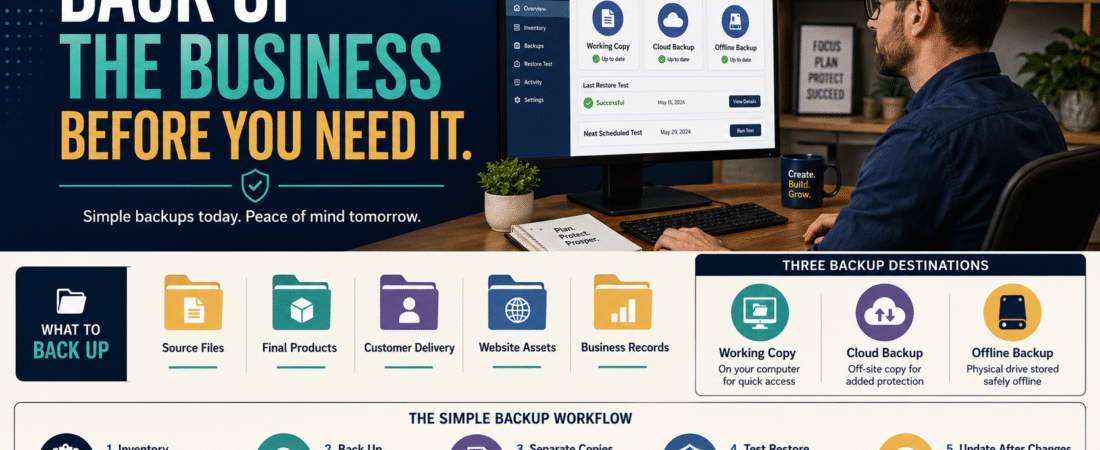
Inventory important assets → create separate backup copies → protect access → test recovery → update backups whenever important changes occur.
NIST’s small-business cybersecurity guidance recommends regularly backing up important data, protecting those backups, and testing them so you know restoration actually works.
Back Up More Than the Final Product
Suppose you sell a 60-page ebook.
The obvious backup is:
Final-Ebook.pdf
But rebuilding the business may require much more.
You may also need:
- Editable manuscript.
- Cover design.
- Source images.
- Product description.
- Sales-page copy.
- Delivery email.
- License or usage terms.
- Customer instructions.
- Checkout copy.
- Product thumbnails.
- Bonus files.
- Update history.
- Affiliate resources.
- Support FAQ.
Backing up only the final PDF protects the product customers receive.
It does not necessarily protect your ability to edit, update, market, or support it.
Start With a Business Asset Inventory
Create one simple list.
You might organize it into five groups.
1. Product Source Files
These are the files used to create the finished product.
Examples:
- Word documents.
- PowerPoint files.
- Canva projects exported to local formats where possible.
- Original graphics.
- Worksheets.
- Audio.
- Video.
- Templates.
2. Final Delivery Files
These are the actual customer files.
Examples:
- PDFs.
- ZIP folders.
- MP4 videos.
- MP3 audio.
- Templates.
- Download bundles.
3. Website and Sales Assets
Examples:
- Sales-page copy.
- Product images.
- Landing-page text.
- Checkout copy.
- Thank-you-page instructions.
4. Operating Information
Examples:
- Product URLs.
- Platform names.
- Renewal dates.
- Support processes.
- Affiliate links.
- Product version history.
- Standard customer responses.
5. Recovery Information
Examples:
- Hosting provider.
- Domain registrar.
- Website backup location.
- Product-delivery provider.
- Email provider.
- Important account-recovery instructions.
Do not put passwords in an ordinary spreadsheet or unsecured document.
Your inventory should tell you where access is managed, not expose the credentials themselves.
Organize Files Before Backing Them Up
Backing up a disorganized folder creates a backup of confusion.
Use clear file names and version control first.
For example:
Digital-Product-Name/
- 01_Source
- 02_Working
- 03_Approved
- 04_Customer-Delivery
- 05_Marketing
- 06_Archive
Then label versions clearly.
The existing guide to organizing digital-product files so you always know which version is final is a useful starting point because a backup is only valuable if you know which files should be restored.
Use More Than One Copy
One of the most important backup principles is separation.
If your only backup is another folder on the same laptop, a laptop failure can destroy both.
If your only backup exists inside one cloud account, losing access to that account can affect both the working files and the backup.
A practical small-business structure might include:
Copy 1 — Working Files
The files you use regularly.
Copy 2 — Separate Cloud Backup
A second location that does not depend on the same device.
Copy 3 — Offline or Separately Protected Copy
An external drive or another protected location that is not permanently exposed to the same system.
NIST’s 2026 small-business guidance specifically recommends multiple backups and suggests keeping at least one copy on media that is not continuously connected to the computer.
You do not need an enterprise data center.
You need enough separation that one failure does not remove every copy.
Back Up the Website Too
Digital-product creators often focus on product files and forget the website.
Depending on your setup, website recovery may require:
- WordPress database.
- Theme.
- Plugins.
- Uploaded media.
- Page content.
- Product images.
- Redirects.
- Forms.
- Custom code.
- Important configuration.
Check what your hosting provider already backs up.
Then determine:
- How often backups are created.
- How long they are retained.
- Whether you can download a copy.
- Whether you can restore individual files or the entire site.
- Whether restoring has ever been tested.
Do not assume “backups included” means every recovery scenario is covered.
Protect Product-Delivery Files
If Product A is delivered from a membership or product platform, keep a master copy outside that platform.
Why?
Because the delivery system should not be the only place the product exists.
Maintain a separate approved delivery folder containing exactly what customers should receive.
This also makes prelaunch testing easier.
My guide to testing a digital-product purchase and delivery process before launch explains why the full customer experience should be tested from checkout through final access.
Your backup should allow you to rebuild that delivery path if necessary.
Include Product-Version History
Suppose customers bought Version 1.0.
You now sell Version 1.3.
A useful backup system should tell you:
- What Version 1.0 contained.
- What changed.
- What customers should receive now.
- Which files are obsolete.
- Which files must remain available.
Do not keep every temporary draft forever.
Keep meaningful approved versions.
The previously published digital-product update policy process can help establish which updates should remain available and how versions should be managed.
Protect Account Access
Backups are useless if nobody can access them.
Use good account-security practices.
NIST recommends enabling multi-factor authentication on accounts that support it and using password managers to generate and protect strong, unique passwords.
At minimum, review security for:
- Primary email.
- Website hosting.
- Domain registrar.
- Cloud storage.
- Product-delivery platform.
- Checkout system.
- Payment processor.
- Password manager.
Your primary email account deserves special attention because it may be the recovery path for several other services.
Do Not Store Recovery Codes Carelessly
Multi-factor authentication sometimes provides backup or recovery codes.
Do not leave them:
- In a public document.
- Inside an unprotected spreadsheet.
- In the same email account they protect.
- Printed beside the computer.
- In a folder shared broadly.
Store them according to the security practices of the authentication or password-management system you use.
The goal is:
Recoverable without being casually exposed.
Decide How Often Backups Need Updating
Not every file needs daily backup.
Use the rate of change.
Back Up Immediately After:
- Completing a new product.
- Publishing a major revision.
- Rebuilding a website.
- Changing critical configuration.
- Updating important legal or customer documents.
Back Up Regularly:
- Active manuscripts.
- Business records.
- Website content.
- Current customer-delivery assets.
Archive Occasionally:
- Older approved product versions.
- Retired marketing assets.
- Historical documentation.
The frequency should reflect how much work you could tolerate losing.
Test the Backup
This is where many backup plans fail.
A file being present does not prove it can be restored.
Test:
- Open the backup location.
- Select one important product.
- Restore it to a temporary folder.
- Open the files.
- Verify the correct version.
- Check images and linked assets.
- Confirm the files are not corrupted.
For a website backup, follow your host’s safe testing process or use a staging environment where appropriate.
NIST emphasizes testing backups because the ability to restore is what makes the backup useful.
Simulate a Small Recovery
You do not need to shut down the business to test recovery.
Pretend:
“My primary laptop is unavailable.”
Can you locate:
- Current product files?
- Product images?
- Customer delivery files?
- Important URLs?
- Operating procedures?
Then pretend:
“My product-delivery platform is temporarily unavailable.”
Can you identify what customers purchased and where approved master files are stored?
The purpose is to expose missing information before a real problem does.
Create a One-Page Backup Map
Your backup map might contain:
Asset: Ebook source files
Primary Location: Working computer
Backup 1: Cloud backup
Backup 2: Offline drive
Last Tested: August 2026
Asset: WordPress site
Primary Location: Hosting account
Backup: Host backup + exported copy
Last Tested: August 2026
Asset: Customer delivery bundle
Primary Location: Product platform
Backup: Approved delivery archive
Last Tested: August 2026
Do not include passwords.
The map tells you where recovery copies exist.
Decide What You Could Rebuild and What You Could Not
Some assets are easy to recreate.
A simple social post might not deserve extensive archival attention.
Other assets would be painful to lose:
- Original manuscript.
- Course video masters.
- Customer-delivery bundle.
- Website database.
- Product artwork.
- License documentation.
Prioritize irreplaceable or expensive-to-rebuild material.
Avoid Backup Overload
Do not create:
backup-final-new-really-final-final2.zip
every day.
That becomes another version-control problem.
Use a consistent system.
For example:
Current working backup
plus:
dated milestone backups
such as:
ProductName_V1.0_2026-08-29
This makes recovery easier.
A Simple Monthly Backup Checklist
Once per month:
- Confirm cloud backup is running.
- Confirm important product folders are included.
- Confirm website backup is available.
- Check offline copy.
- Review recently changed products.
- Confirm recovery information is current.
- Test one small restoration.
- Record the test date.
After a major launch or update, perform an additional backup.
What a Backup Cannot Solve
A backup does not automatically solve:
- Stolen credentials.
- Payment disputes.
- Domain ownership problems.
- Vendor shutdown.
- Poor documentation.
- Customer-service failures.
It is one part of business continuity.
The next step is making sure someone can understand the business systems if you are temporarily unavailable.
Conclusion
A digital-product backup plan should protect more than the final download customers receive.
Back up source files, approved delivery assets, website information, operating documentation, and meaningful product versions.
Keep copies separated.
Protect access with strong authentication.
Test restoration.
Update the backups after important changes.
The best time to discover that your backup system is incomplete is during a planned test—not after the only usable copy of an important product disappears.